Landing Page Speed: Keep LCP at 2.5 Seconds to Protect Conversions

For a landing page, aim for a Core Web Vitals pass at the 75th percentile: LCP at 2.5 seconds or less, INP at 200 milliseconds or less, and CLS at 0.1 or less. The first action is simple: run PageSpeed Insights on the exact landing page URL for both mobile and desktop, then check whether the field data shown is specific to that page or pulled from the whole origin. From there, lab diagnostics tell you what to fix, and real-user data tells you whether the fix worked.
TL;DR:
- Run PageSpeed Insights on the landing page URL for mobile and desktop, then verify whether CrUX field data reflects that page or the whole site.
- Use LCP subparts to isolate whether delays come from server response, late resource discovery, image downloads, or rendering; inspect traces for the flagged element.
- Test forms, consent banners, and menus through real interactions, because one laggy submission can determine INP despite a fast initial paint.
- Preload the hero image only when diagnostics identify it as the LCP element and show late discovery; otherwise, preloading can compete for bandwidth.
- Track page level 75th percentile metrics by release, and review alerts when LCP exceeds 2.5 seconds, INP exceeds 200 milliseconds, or CLS exceeds 0.1.
Table of Contents
- How to test your landing page: which tools to run and what each result tells you
- Diagnose LCP and INP problems: use the metric subparts and traces to pick the right fix
- Prioritize the conversion path and interactions: what to test and fix first on a landing page
- High-impact fixes: specific changes that typically produce the largest improvements
- Monitoring and automation: a practical workflow to measure changes and prevent regressions
- Impact of landing page speed on SEO and Google rankings
- Relationship between landing page speed and user experience metrics beyond Core Web Vitals
- Specific optimization techniques for mobile landing page speed
- Balancing landing page speed improvements with design and branding requirements
- Vertical’s perspective: how integrated delivery protects speed and conversions
- FAQ
- Sources
How to test your landing page: which tools to run and what each result tells you
Start with PageSpeed Insights on the precise URL you send traffic to, not the homepage and not a staging environment. Run it for mobile and desktop separately, since the two often tell different stories. PSI reports two distinct things: a Lighthouse lab score built from a simulated page load, and, when available, 28 days of real-user Chrome UX Report (CrUX) data. If your landing page does not get enough traffic, PSI quietly substitutes origin-level data for the whole site. That distinction matters: origin data tells you about your site in general, not about the page you are trying to fix.
Lighthouse gives you the diagnostics, listing render-blocking resources, oversized images, and long tasks. WebPageTest adds a layer PSI does not: filmstrip views and full request waterfalls, so you can watch exactly when the hero image or headline appears relative to every other request on the page. This is especially useful when you suspect a resource is being discovered late, such as an image injected by JavaScript after the initial HTML loads.
To see how real visitors experience the page, pull percentile data directly from CrUX or a RUM provider already installed on your site. CrUX reports the 75th percentile for LCP, INP, and CLS, segmented by device and connection type, which is the number that actually determines whether Google treats your page as fast. When PSI falls back to origin data because of low traffic, treat those numbers with caution and prioritize adding RUM so you get page-level figures instead of a site-wide average.
A practical first testing pass looks like this:
- Run PageSpeed Insights on mobile for the exact landing page URL.
- Run PageSpeed Insights on desktop for the same URL.
- Capture one WebPageTest trace to see the filmstrip and waterfall.
- Check your analytics or RUM tool for 75th-percentile LCP, INP, and CLS on that page specifically.
Diagnose LCP and INP problems: use the metric subparts and traces to pick the right fix
A slow LCP score tells you something is wrong, but not what. Chrome’s CrUX data breaks LCP into four subparts that point to different fixes: time to first byte, resource discovery delay, resource download duration, and element render delay. A long TTFB usually means a server or redirect problem. A long discovery delay often means the LCP element, frequently a hero image, is being injected by JavaScript instead of appearing directly in the HTML. A long download duration points to image weight or format. A long render delay means something is blocking the browser from painting the element even after it has downloaded.
INP has its own set of culprits. According to Web, the metric reports your page’s worst interaction, which is often a slow form submission, a laggy menu, or a CTA click buried under other work. Common causes include long-running JavaScript handlers, heavy main-thread tasks from analytics or ad scripts, and synchronous DOM reads that force the browser to recalculate layout before it can respond to input.
When you open Lighthouse or a WebPageTest trace, look for a specific set of signals:
- Long main-thread tasks that delay interaction readiness.
- Render-blocking scripts or stylesheets loaded before the hero content.
- Late image requests that suggest the LCP element is JavaScript-injected.
- Redirect chains that add round trips before the page can start rendering.
- Large transfer sizes on the critical path, especially images and fonts.
For diagnosis, record the exact figures rather than relying on a pass or fail badge: 75th-percentile LCP, 75th-percentile INP, 75th-percentile TTFB, the duration of the longest main-thread tasks, and the resource timing entry for whichever element Lighthouse flags as the LCP candidate.
Pro Tip: Open the Lighthouse “LCP element” link directly in the trace; it tells you exactly which DOM node is being measured, which ends most debates about whether the hero image or the headline text is the bottleneck.
Prioritize the conversion path and interactions: what to test and fix first on a landing page
A landing page can post a fast LCP and still convert poorly if the form or CTA responds sluggishly once a visitor tries to act. Because INP reports the worst interaction on the page, a laggy submit button can undo the benefit of image optimizations you have shipped. The fix is to test the actual conversion path, not just the initial paint, as web.dev’s INP documentation makes clear.
A practical order for triage:
- Confirm the hero LCP element loads quickly and renders without delay above the fold.
- Test form field responsiveness and the full submit flow, including validation and confirmation states.
- Check consent banners and any modal that intercepts the first few seconds on the page.
- Review embeds, like chat widgets or video players, that could block input processing once loaded.
Instrument these interactions in your RUM tool so you capture real submit and click timings, not just lab simulations. Where Lighthouse supports it, simulate the interaction directly; otherwise, rely on live testing across a few device and connection combinations.
Pro Tip: Tag each deploy or A/B variant in analytics so you can compare 75th-percentile metrics release over release, as recommended in web.dev’s field measurement guidance, rather than guessing whether a change helped.
High-impact fixes: specific changes that typically produce the largest improvements
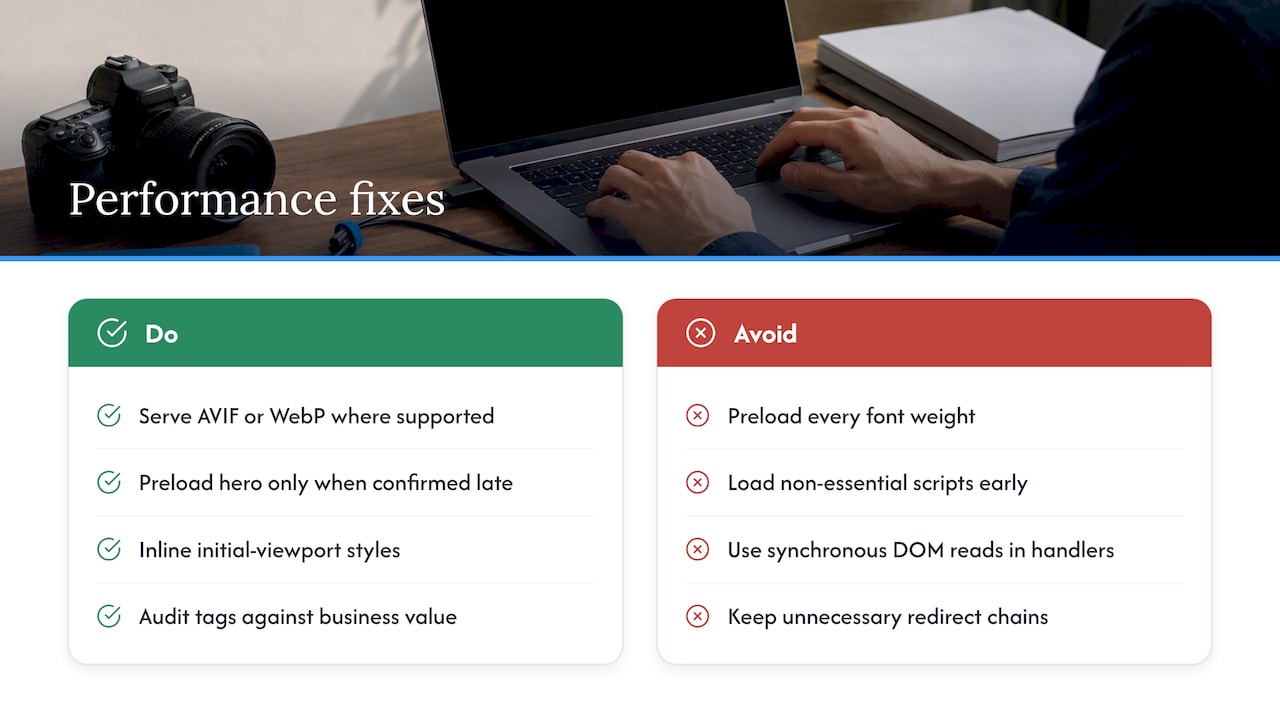
Once diagnostics point to a cause, the fix usually falls into a few categories. Start with images, since they are the most common LCP element on a landing page. Serve modern formats like AVIF or WebP where browser support allows, specify exact width and height, use responsive srcset so mobile devices do not download desktop-sized files, and lazy-load anything below the fold. Preload the hero image only when diagnostics confirm it is the LCP element and is being discovered late, as Chrome’s CrUX image subparts data and analysis from Lucky Orange both suggest; preloading an image that is not the problem adds bandwidth contention without solving anything.
Critical CSS and font loading come next. Inline only the styles needed for the initial viewport, defer everything else, and avoid preloading every font weight on the page since each one competes for bandwidth during the critical rendering window. Frameworks including Next.js and Angular now support automatic critical CSS and font inlining, which removes a runtime round trip for initial styles.
JavaScript, especially third-party scripts, is often the biggest INP offender. Chrome’s own research shows third-party tags frequently block the main thread, and guidance on Next.js third-party management confirms the same pattern across frameworks: analytics, chat widgets, and ad pixels compete with your own code for processing time. Audit every tag against the business value it delivers, load non-essential scripts with async or defer, and delay anything that is not needed in the first few seconds.
Reviewing each page element against what it actually contributes is one of the fastest ways to recover main-thread time.
For hosting and delivery, reduce TTFB with edge caching, eliminate unnecessary redirect chains, and set cache-control headers correctly so repeat visits do not re-download static assets. Heavy endpoints, like personalization logic running server-side, may be worth moving to an edge function closer to the visitor.
Keep render-blocking work to a minimum: avoid inline scripts that pause HTML parsing, keep critical-path CSS lean, and combine only the resources that genuinely need to load before first paint. On the interaction side, keep event handlers short, use requestIdleCallback or sendBeacon for analytics calls so they do not compete with user input, and avoid synchronous DOM reads inside input handlers.
Some of this work is quick: compressing images, adding cache headers, and switching scripts to async can often happen in an afternoon. Other changes, like re-architecting third-party integrations or migrating hosting, take longer and deserve to be scheduled rather than squeezed in. We generally recommend sequencing the quick wins first so teams see measurable movement before tackling the bigger structural changes. For landing pages tied to a checkout or purchase flow, our ecommerce site speed guide walks through how these same fixes play out when conversion value is on the line.
Monitoring and automation: a practical workflow to measure changes and prevent regressions
Manual testing catches problems once; monitoring catches them continuously. The PageSpeed Insights API paired with the CrUX API gives you both halves of the picture automatically: PSI returns Lighthouse lab diagnostics on demand, while CrUX returns histograms and 75th-percentile values you can track over time without running a manual test each week.
A workable monitoring setup includes a few recurring steps:
- Schedule WebPageTest runs on mobile emulation so you have a visual timeline and waterfall for every major deploy.
- Track 75th-percentile LCP, INP, and CLS in your RUM tool rather than averages, which hide the slow-tail experiences that actually hurt conversions, as web.dev’s field measurement guidance recommends.
- Tag releases with version identifiers so you can compare percentile metrics before and after a specific deploy.
- Set alert thresholds at the same levels Google uses for passing: p75 LCP above 2.5 seconds, p75 INP above 200 milliseconds, or p75 CLS above 0.1 should trigger a review.
Triage these alerts weekly, and escalate anything that persists past a single release. A simple sequence works well in practice: run PSI and WebPageTest immediately after a deploy, compare the resulting percentiles to the prior release, and if a regression shows up, capture a fresh trace and assign it before the next sprint starts.
Impact of landing page speed on SEO and Google rankings
Core Web Vitals measure aspects of page experience, and a landing page that fails LCP, INP, or CLS at the 75th percentile may offer a worse experience to visitors. The corewebvitals.io threshold guidance defines poor performance clearly: LCP above 4 seconds, INP above 500 milliseconds, or CLS above 0.25 all count as failing, with everything between “good” and “poor” treated as needing improvement.
Passing thresholds will not override weak content or poor relevance, but a slow landing page can undercut the ranking potential that strong content would otherwise earn. For paid landing pages, speed carries a second, more immediate weight: ad platforms increasingly factor page experience into quality scoring, which affects cost per click independent of organic search.
The practical takeaway is to treat Core Web Vitals as a floor, not a ceiling. Meeting the thresholds removes a drag on performance; it does not substitute for relevant content, clear calls to action, or a page structure that answers the visitor’s intent. Teams that treat speed and content as separate workstreams tend to under-invest in one or the other. Both need attention, and neither compensates for the other.
Relationship between landing page speed and user experience metrics beyond Core Web Vitals
Core Web Vitals measure specific technical moments, but visitors respond to the page as a whole, and that shows up in metrics vitals do not directly capture. Bounce rate and session duration can help you investigate how visitors respond to load speed. A slow or unstable page may frustrate visitors, but these metrics alone do not establish why they leave.
These behavioral metrics are useful precisely because they capture frustration that a passing Core Web Vitals score might miss. A page can technically pass LCP and INP thresholds while still feeling sluggish during scroll, video playback, or image-heavy sections that fall outside the specific interactions Core Web Vitals samples. Watching bounce rate and time on page alongside your vitals dashboard gives you a fuller picture of where visitors are actually struggling.
The practical implication is to treat Core Web Vitals as a leading indicator, not the finish line. When bounce rate rises even though your vitals are green, look at scroll-triggered animations, video autoplay, or image carousels, areas vitals testing often under-samples. Conversely, a vitals failure paired with stable engagement metrics suggests the technical issue is not yet visible to most visitors, though it is still worth fixing before traffic or device mix shifts.
Specific optimization techniques for mobile landing page speed
Mobile landing pages face tighter constraints than desktop: slower processors, variable network conditions, and smaller viewports that still need to load a full conversion experience. The fixes that matter most on mobile overlap with general best practices but carry more weight here, since mobile devices have less headroom to absorb inefficiency.
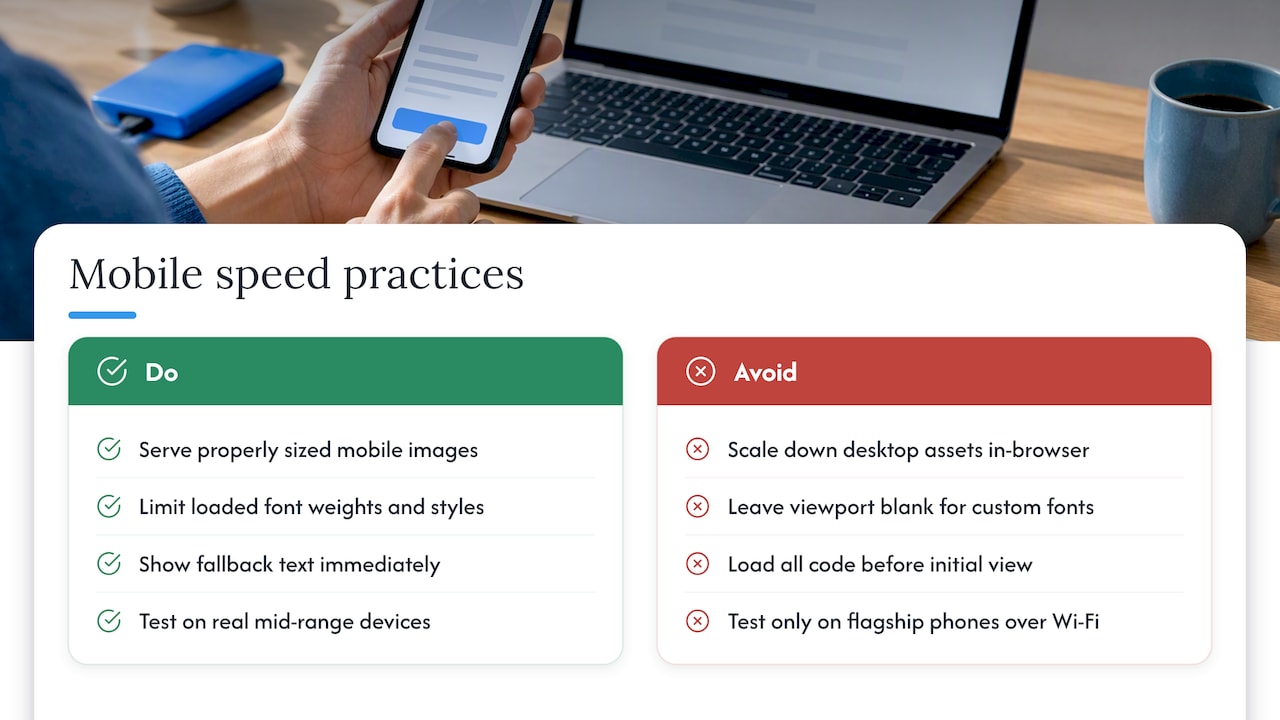
Image sizing matters more on mobile because unnecessary bytes cost more on cellular connections. Serving a properly sized image through srcset rather than scaling down a desktop asset in the browser avoids wasted download time. Fonts deserve the same scrutiny: limit the number of weights and styles loaded, and use a font-display strategy that shows fallback text immediately rather than leaving the viewport blank while a custom font downloads.
JavaScript execution time hits mobile devices harder than desktop because mobile CPUs process scripts more slowly. Splitting bundles so only the code needed for the initial view loads first, and deferring everything else, has an outsized effect on mobile INP specifically. Third-party scripts deserve particular attention here, since Chrome’s research on third-party loading shows these scripts compete for the same limited main-thread time that mobile devices have less of to begin with.
Finally, test on real mid-range devices or device emulation in WebPageTest, not just a high-end phone on a fast office network. A page that feels instant on a flagship device over Wi-Fi can feel noticeably slower on the mid-range hardware and cellular connections many visitors actually use.
Balancing landing page speed improvements with design and branding requirements
Speed work and brand requirements sometimes pull in different directions: a custom font supports brand recognition, a large hero video supports storytelling, and a rich animation supports a premium feel, but each one adds weight to the page. The goal is not to strip these elements out wholesale but to sequence and implement them so they cost less without disappearing.
Custom fonts can stay in the design system while limiting the number of weights loaded and using font-display: swap so text remains visible during the font swap instead of invisible. A hero video can be replaced with a compressed poster image that loads instantly, with the video itself loading after the initial paint. Animations and transitions can run on CSS transforms, which the browser handles efficiently, instead of JavaScript-driven effects that compete with other main-thread work.
The sequencing question usually matters more than the asset question. A heavy embed or interactive element does not need to block the content a visitor sees initially, it just needs to load shortly after. Our landing page design guide covers how to prioritize above-the-fold elements so the visual impact a brand needs and the load speed a conversion goal requires are not treated as opposing forces.
Design and engineering teams that review speed budgets together, rather than engineering imposing constraints after design is finalized, tend to reach this balance faster. A font choice or hero treatment is far easier to adjust in a design file than after a page has already shipped.
Vertical’s perspective: how integrated delivery protects speed and conversions
We bring strategy, creative, and web development together specifically because speed decisions and conversion decisions cannot be made in separate rooms. A hero image chosen by a creative team and a script added by a marketing team both affect the same LCP and INP numbers, and treating them as unrelated problems is how landing pages end up slow. Our approach prioritizes the elements that actually move the conversion path, informed by outcomes we have delivered for clients like FACEGYM, and we are glad to walk through a conversion-first speed assessment for a page you are working on.
— Alex
FAQ
What is a good landing page speed target?
Aim for Core Web Vitals to pass at the 75th percentile: LCP at 2.5 seconds or less, INP at 200 milliseconds or less, and CLS at 0.1 or less. Anything above LCP of 4 seconds, INP of 500 milliseconds, or CLS of 0.25 counts as poor and needs immediate attention.
How do I check my landing page’s loading speed?
Run PageSpeed Insights on the exact page URL for both mobile and desktop, checking whether the field data is page-specific or falls back to origin-level data. Add a WebPageTest run for a visual filmstrip and waterfall when you need to see exactly which resource is slowing things down.
What is the difference between lab data and field data?
Lab data, generated by Lighthouse inside PageSpeed Insights, simulates a page load under controlled conditions and is best for diagnosing causes. Field data from CrUX reflects real visitors over the past 28 days and tells you whether a fix actually improved the experience people had.
Does landing page speed affect SEO rankings?
Yes, Core Web Vitals are part of how Google evaluates page experience, and failing the thresholds at the 75th percentile works against a page’s ranking potential even when the content is strong. Passing the thresholds removes that drag but does not replace the need for relevant, well-structured content.
Why does my page pass Core Web Vitals but still feel slow?
Core Web Vitals sample specific moments like the largest paint and the slowest interaction, so issues outside those moments, like scroll performance or video buffering, can go undetected. Watching bounce rate and session duration alongside your vitals dashboard helps surface problems vitals testing does not directly measure, as noted in web.dev’s field measurement guidance.
Sources
- Corewebvitals
- About PageSpeed Insights | Google for Developers
- LCP image subparts and RTT now available in CrUX | Blog | Chrome for Developers
Recommended

Other posts


























































Stay ahead with better decisions.
Get business insights today.
